Notifications

5 minutes, 30 seconds
-46 Views 0 Comments 0 Likes 0 Reviews
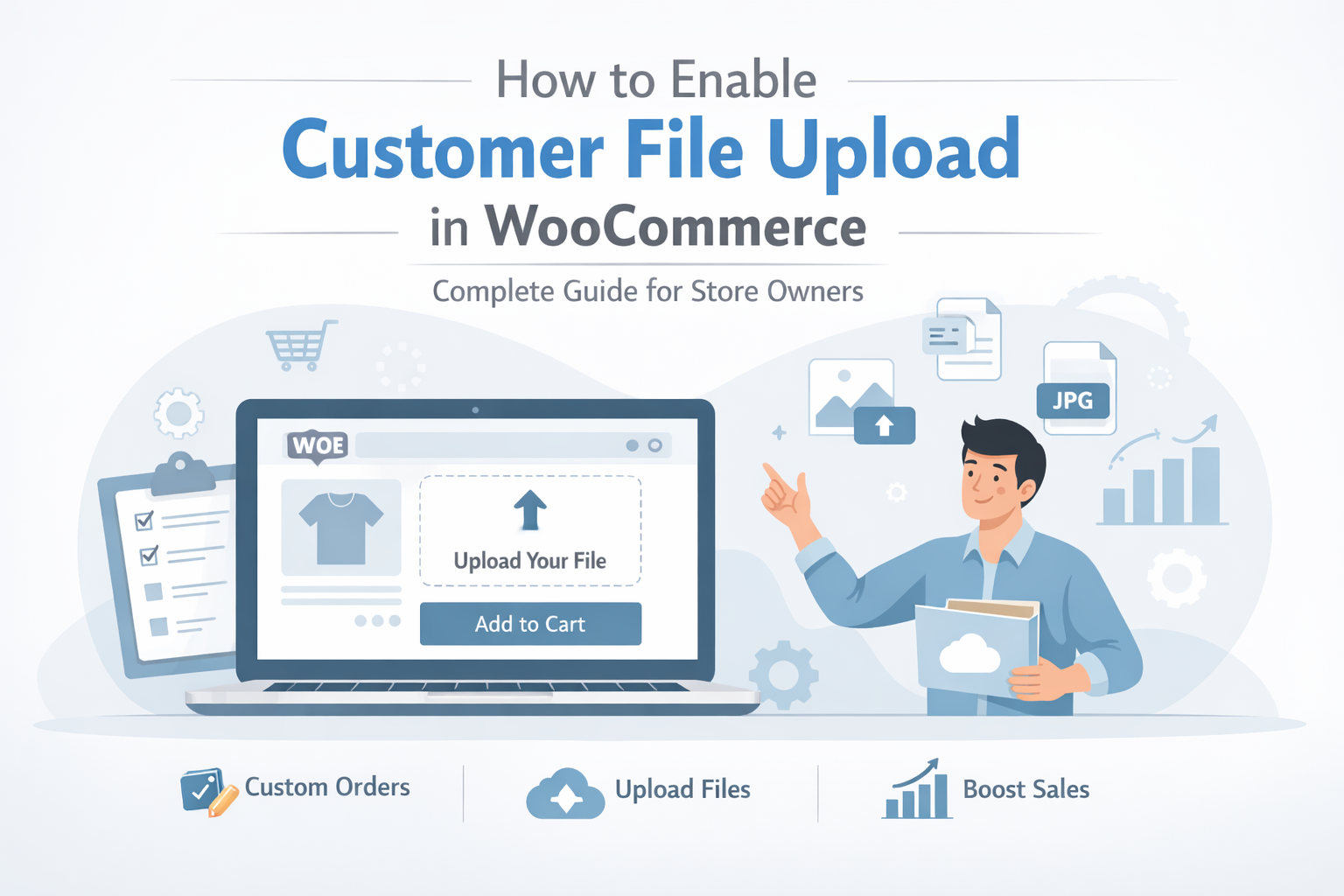
Running a WooCommerce store often means handling custom orders, personalized products, or specific customer requirements. But what happens when customers need to send files—like images, documents, or design assets—along with their orders?
This is where Customer upload file WooCommerce functionality becomes essential.
In this guide, you’ll learn why file uploads matter, how to enable them, and best practices to improve your store’s performance and customer experience.
Customer file upload in WooCommerce allows buyers to submit files directly on product, cart, or checkout pages. These files can include:
Images for printing or customization
Documents for verification
Logos or design files
Any additional instructions in file format
Instead of managing emails or external links, everything stays organized within your store.
Adding a Customer Upload file WooCommerce feature is more than just convenience—it directly impacts your business efficiency.
When customers upload files directly, there’s less chance of missing details or miscommunication.
No need to follow up via email for attachments. Everything is collected upfront.
Customers prefer a smooth and professional ordering process without extra steps.
If you sell personalized items like t-shirts, mugs, banners, or digital services, file uploads are critical.
This functionality is widely used across different industries:
Printing businesses – customers upload artwork
Graphic design services – submit project files
Custom merchandise stores – logos, text, images
Legal or documentation services – upload forms
Photography services – client file submissions
If your business involves customization, enabling file uploads is a must.
WooCommerce doesn’t include file upload functionality by default, so you’ll need a plugin to enable it.
Follow these steps:
Choose a reliable WooCommerce plugin that supports file uploads on product, cart, or checkout pages.
After installation, configure:
Allowed file types (JPG, PNG, PDF, etc.)
Maximum file size
Upload location (product page, cart, or checkout)
Enable upload fields for specific products where customization is required.
Before going live, place a test order to ensure files are uploading correctly and accessible in the order details.
To get the most out of this feature, follow these proven strategies:
Tell customers exactly what type of file they should upload.
Avoid unnecessary formats to maintain compatibility and security.
Allow enough size for quality uploads but prevent oversized files that slow down your site.
Only show upload options when needed to keep the interface clean.
Many users shop on mobile devices, so test uploads on different screen sizes.
Even though the setup is simple, many store owners make avoidable mistakes:
Customers may upload incorrect files if instructions are missing.
This can lead to security risks and irrelevant uploads.
Large uploads can affect website performance if not optimized.
Always test from the customer’s perspective before launch.
A well-implemented Customer Upload file WooCommerce system creates a smoother buying journey.
Customers:
Feel more confident placing custom orders
Complete purchases faster
Avoid back-and-forth communication
For store owners, this means:
Fewer errors
Faster processing
Higher customer satisfaction
Enabling file uploads in WooCommerce is no longer optional for stores offering custom products or services. It simplifies communication, improves accuracy, and enhances the overall shopping experience.
By implementing a reliable Customer Upload file WooCommerce solution and following best practices, you can streamline operations and build a more professional, user-friendly store.
ecommerce Wocommerce file upload customer upload file woocommerce


)
)